
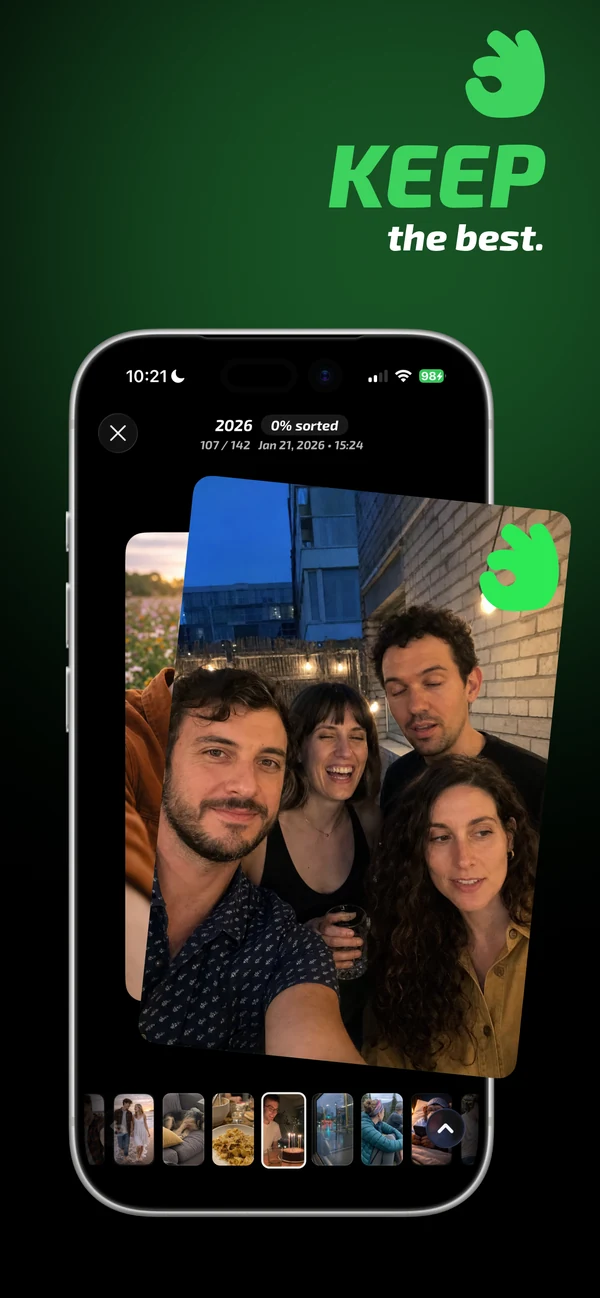
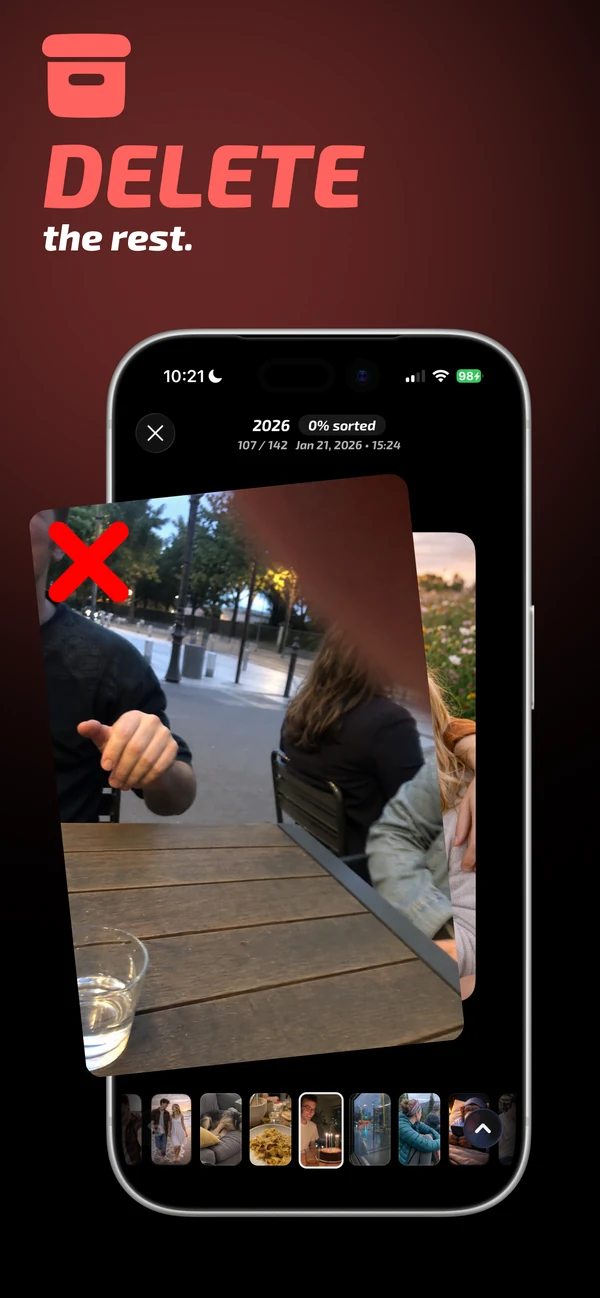
Install Mochi, choose a year or album, then swipe each photo to keep, archive or mark it for deletion. When the batch ends, review the deletion list and only then apply it. This gives you swipe speed without surrendering control.
Why swiping is faster than selecting from a grid
Apple Photos is excellent for browsing and selecting obvious groups, but a grid still asks your brain to evaluate many images at once. A swipe interface shows one primary photo, keeps the controls consistent and turns cleanup into a sequence of small decisions.
The benefit is not the gesture by itself. It is the reduced decision load: one image, one action, immediate progress. This is especially effective for old years, travel albums, screenshots and repeated attempts at the same shot.
1. Start with one year, album or category
Do not begin with every photo unless your library is small. Choose a batch you can understand and finish. A year is useful for old memories; the Screenshots album is useful for obvious clutter; a travel album keeps similar context together.
Mochi lets you enter cleanup through years and albums, so the same swipe workflow can be reused without turning the entire camera roll into one endless queue.
2. Use three decisions, not two
A strict keep-or-delete choice causes hesitation when a photo may still matter. A better system is:
- Keep: the image is useful, meaningful or clearly the best version.
- Archive: you are uncertain and do not want it in the delete batch.
- Delete: the image is accidental, obsolete, low quality or weaker than another shot.
Archive protects momentum. You can continue cleaning without making a permanent-feeling decision under pressure.
3. Review every delete decision
Fast gestures increase the chance of an accidental action. A trustworthy swipe photo cleaner should therefore separate marking from deleting. In Mochi, review the batch after swiping and remove any photo that does not belong in the delete list.
This checkpoint is more important than an undo animation. It lets you inspect the complete consequence of the session while the context is still fresh.
4. Know what happens after deletion
iPhone normally moves deleted photos and videos to Recently Deleted for up to 30 days. You can recover a mistake during that period. If you need storage immediately, you can permanently remove items from that collection after one more review.
Read Apple's photo deletion and recovery guidance
What to look for in a swipe-to-delete photos app
- A visible review step before deletion.
- On-device photo processing and a clear privacy policy.
- Ways to limit the session by year, album or category.
- Support for similar-photo comparison, not only exact duplicates.
- Clear limits and controls before you start sorting.
A swipe gesture can make cleanup satisfying, but the product should still make the consequences legible. Speed and control are not opposites when review is part of the flow.
Common questions
Can I swipe to delete photos directly in Apple Photos?
Apple Photos uses swipes mainly for navigation. You can select and delete multiple photos, but it does not provide the same dedicated keep/archive/delete card workflow as Mochi.
Does Mochi delete a photo immediately when I swipe?
No. A swipe records the decision for the batch. You review the marked items before applying the delete action.
Is swipe cleanup useful for videos and Live Photos?
Mochi supports browsing photos, videos and Live Photos. Larger videos can have a bigger storage impact, so give them extra attention during the review.