
Sort the Apple Photos library by capture date when needed, then use Mochi to open one year at a time. Remove obvious clutter first, compare similar moments, review the batch and stop when that year's session has a clear finish.
First, make sure photos are sorted by the right date
Apple Photos can sort the library by the date an item was added or the date it was captured. Imports from another phone, camera or cloud service can make Recently Added look unrelated to the actual timeline.
In Photos, use the Sort and Filter control and choose Sort by Date Captured when you want the historical order. This does not change the files; it changes how the library is presented.
Read Apple's library sorting instructions
1. Choose a year with a reason to clean it
Start with a year that has obvious clutter, a major life event or a manageable number of photos. The oldest year is not automatically the best first choice. Momentum matters more than chronology.
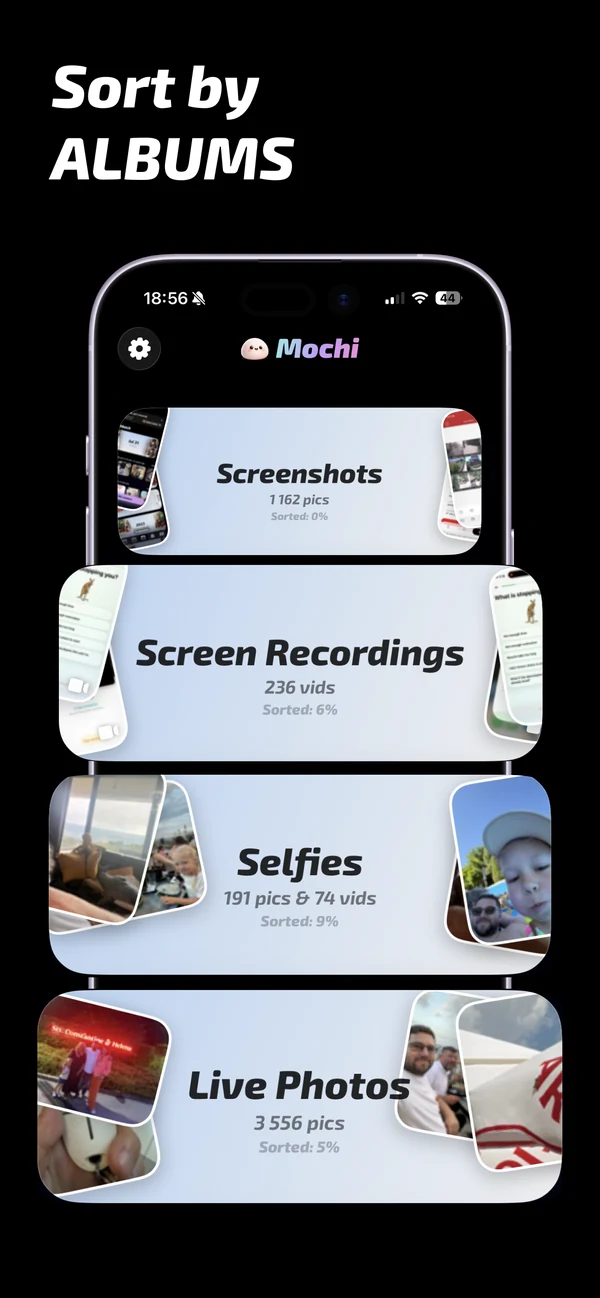
Mochi shows years as separate entry points with photo counts and progress, so you can return to the same year without losing the scope of the project.
2. Make an obvious-clutter pass
Do not begin by evaluating every meaningful memory. Clear the easy material first:
- Accidental pocket shots and blank images.
- Outdated screenshots and temporary reference photos.
- Failed attempts where the subject is hidden, blurred or cut off.
- Downloads and memes you no longer need in the library.
This pass creates visible progress and leaves more attention for the photos that deserve comparison.
3. Compare repeated moments
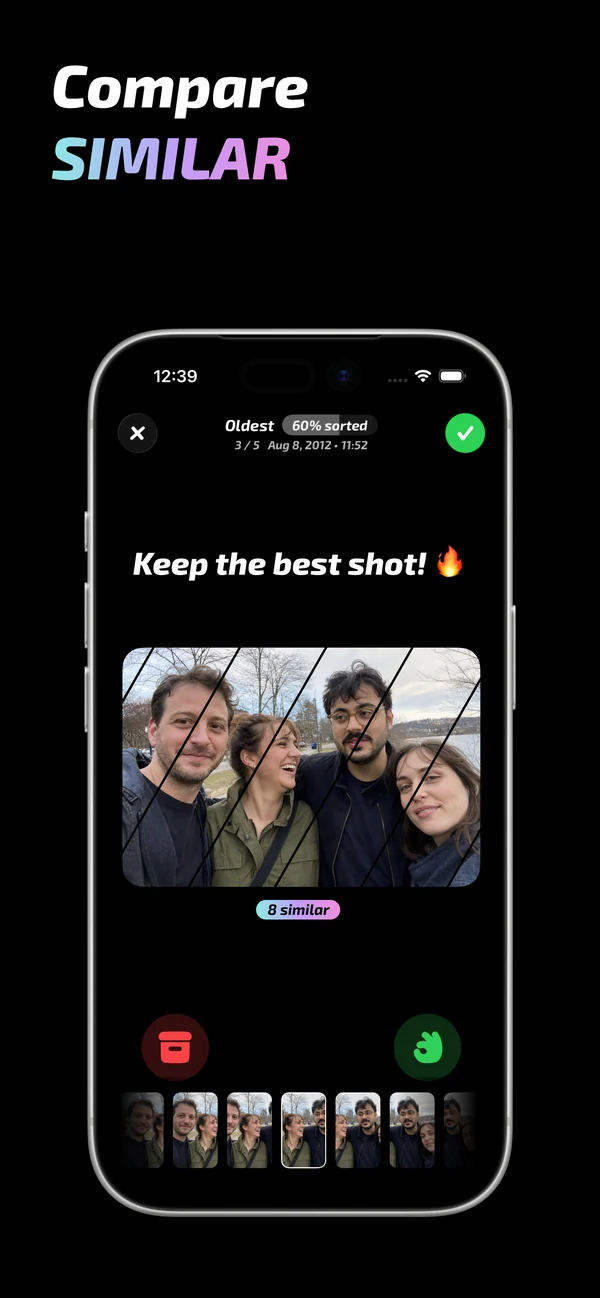
Travel, celebrations and family events often produce many near-identical photos. Open similar groups, choose the strongest frame and keep another image only when it adds a different expression, subject or part of the story.
For a long event, keep a representative sequence rather than one photo from every minute. The goal is a library you enjoy revisiting, not the smallest possible number.
4. Use albums for meaning, not as a substitute for cleanup
Albums are useful for trips, family, work and projects, but adding a photo to an album does not create a second copy or remove it from the main library. Organize the strongest images after the clutter is reduced, otherwise the album can reproduce the same overload.
A simple pattern is one event album plus Favorites for the very best images. Avoid building a deep folder system unless you know you will maintain it.
5. Stop after a completed session
A year with thousands of photos may need several sessions. Set a decision count or time limit, review and apply that batch, then continue later. A visible percentage or saved-space result makes the return easier than an open-ended promise to finish someday.
Common questions
Can I create automatic year albums on iPhone?
Photos already presents the library through dates and memories. You can create your own albums, but Mochi's year entry points are designed specifically for cleanup progress rather than permanent organization.
Does moving photos to albums free storage?
No. An album references photos already in the library. Storage is reduced by deleting files, merging duplicates or using iCloud storage optimization.
Should I organize by year or by event?
Use years for the cleanup project and events for the final organization. The year gives the work a boundary; event albums make the remaining photos easier to revisit.