
Apple Photos can merge exact duplicates, but near-identical portraits, bursts and repeated shots need visual comparison. Mochi finds similar groups, displays the alternatives together and lets you keep the best frame before reviewing the delete candidates.
What counts as a similar photo?
Similar photos are separate files with strongly related content. They may show the same subject seconds apart, the same document from slightly different angles or the same scene with small exposure and framing changes.
They do not always belong in the trash. A burst can contain a useful sequence, and two family photos can carry different expressions. The purpose of a similar-photo finder is to narrow the comparison, not make a personal decision invisibly.
Start with the built-in iPhone tools
Use Photos → Collections → Utilities → Duplicates for exact copies. You can also open a Burst collection and choose favorites from a single burst. These tools remove obvious redundancy before you inspect broader near-duplicate groups.
If a set looks repeated but does not appear in Duplicates, that is expected: the images may be visually similar without being copies.
1. Find similar groups in a focused part of the library
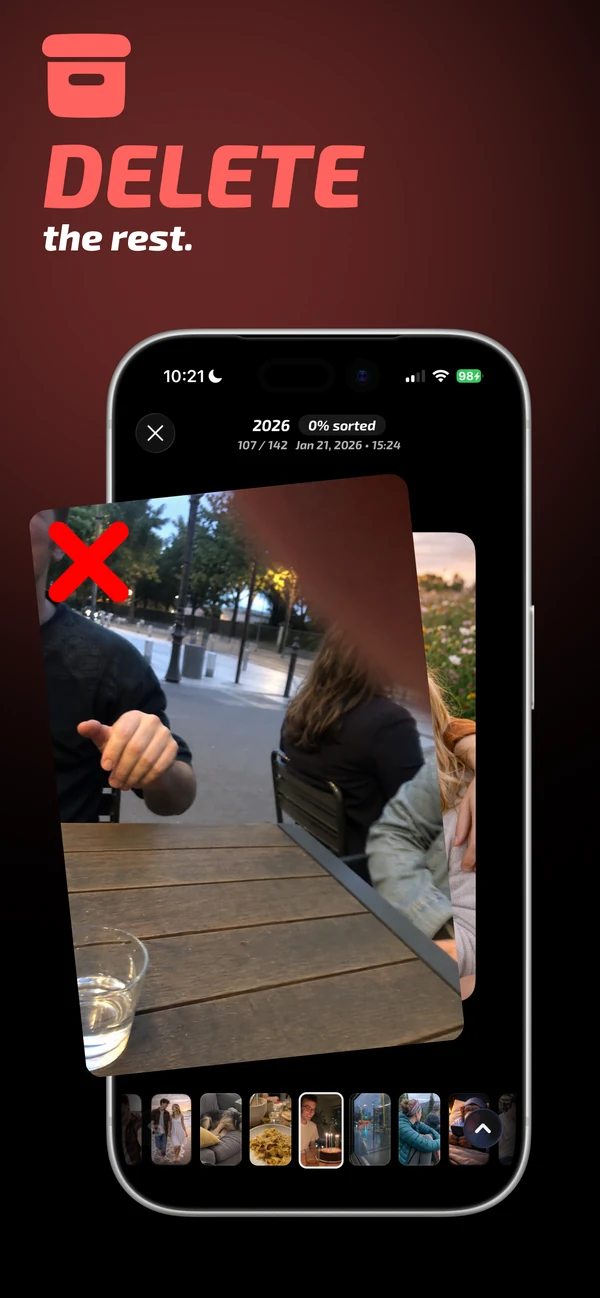
Start with an event, album or year where repeated shots are likely. Mochi scans for duplicate and similar groups, and its comparison view keeps the related thumbnails visible around the main image.
A focused scope reduces false urgency. You can finish the family event from 2024 without deciding what to do with every screenshot or work photo on the phone.

2. Compare the photos in the same order every time
- Sharpness: zoom into the subject, especially eyes and text.
- Expression and motion: look for blinks, awkward movement and the moment that feels natural.
- Composition: check accidental crops, horizon and distracting edges.
- Exposure: protect important highlights and faces.
- Unique context: keep another frame when it tells a genuinely different part of the moment.
For screenshots, replace expression and motion with readability and whether the information is still current.
3. Keep the best frame and review everything else
Keep the strongest image first. Then compare every remaining shot against it. If a second photo has no unique advantage, mark it for deletion. If you are uncertain, archive it and continue rather than turning cleanup into a high-pressure choice.
At the end of the group or session, review the complete deletion batch. A thumbnail that looked weak in comparison may contain a detail you want once viewed on its own.
Common questions
Does iPhone automatically group all similar photos?
No. Apple Photos provides exact-duplicate detection and burst handling, but not every near-identical group appears as a cleanup recommendation. A dedicated comparison workflow can cover more of the library.
Is the largest file always the best photo?
No. File size can reflect format, edit history or resolution, but it does not guarantee better expression, focus or composition.
Should I keep edited and original versions?
Keep both when the edit serves a different purpose or the original is valuable. If the edit is clearly final and reversible within Photos, the extra exported copy may be unnecessary.