
Check Settings → General → iPhone Storage, then choose between iCloud optimization and deletion. Remove large unwanted videos, exact duplicates, near-duplicates and screenshot clutter. Deleted items may continue using space in Recently Deleted for up to 30 days, so empty it only after a final review when storage is urgent.
1. Measure device storage and iCloud storage separately
Device storage is the physical capacity on your iPhone. iCloud storage is a separate cloud allowance. Open Settings → General → iPhone Storage to see device usage, then open your Apple Account → iCloud to see cloud usage.
If Photos uses little device storage because optimization is already active, deleting images may not create as much local space as expected. If Photos and videos dominate the device, cleanup can have a direct effect.
Read Apple's photo and video storage guide
2. Decide whether you need optimization or deletion
Optimize iPhone Storage keeps full-resolution originals in iCloud and smaller device versions when space is needed. It is useful when you want to keep the entire library and have enough iCloud storage.
Deletion is appropriate when files are truly unwanted and should disappear from the synced library. Optimization and cleanup can be combined: optimize the valuable library, delete the clutter.
3. Clean the highest-impact media first
For immediate storage, review long and high-resolution videos before tiny screenshots. Then move through exact duplicates, near-identical photos, failed shots and old years. A useful priority order is:
- Large unwanted videos and screen recordings.
- Exact duplicate photos and videos.
- Similar bursts and repeated event shots.
- Obsolete screenshots, downloads and temporary references.
- Old years and albums that contain mixed clutter.
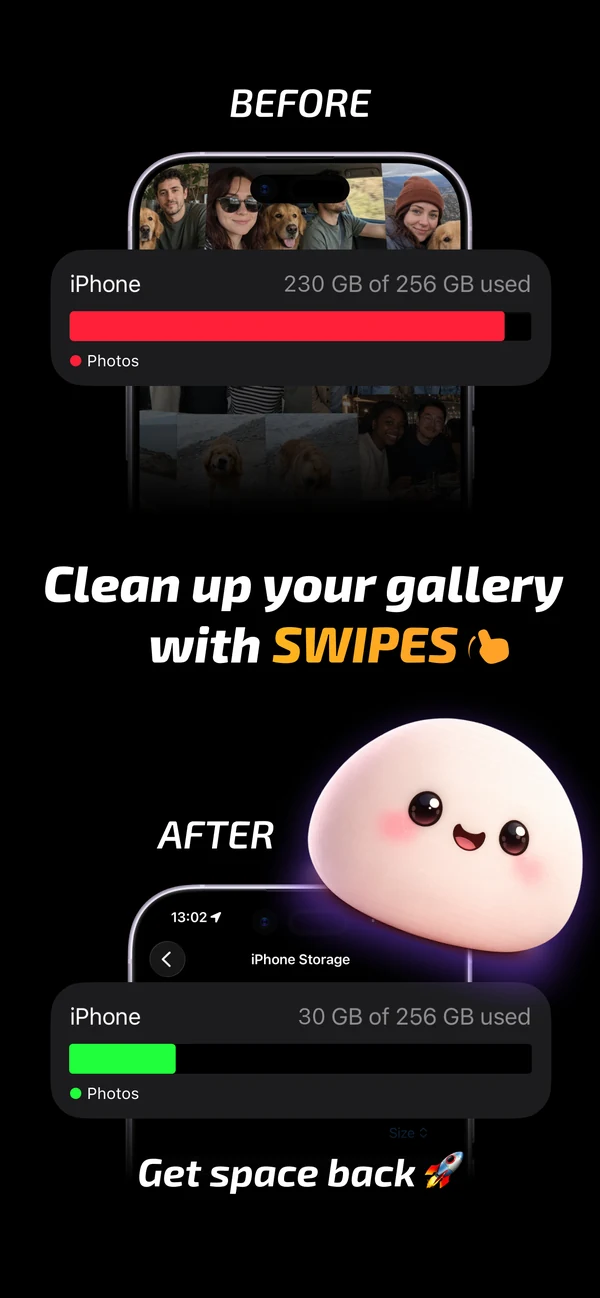
Mochi supports photos and videos, tracks bytes saved and lets you clean by year or album. It does not need to upload your library to perform the sorting workflow.

4. Review the batch before deleting from the synced library
A storage emergency encourages aggressive selection, which is when mistakes become expensive. Mark unwanted items, inspect the complete batch and remove anything uncertain. Mochi separates swipe decisions from the final apply action so speed does not hide the consequence.
5. Empty Recently Deleted when storage is urgent
Photos and videos normally remain in Recently Deleted for up to 30 days. That provides recovery, but those files can continue consuming storage. Open Photos → Collections → Utilities → Recently Deleted, unlock it and inspect the batch before permanent deletion.
If you are not under immediate storage pressure, keep the recovery window. Permanent deletion cannot be undone through Photos.
Read Apple's Recently Deleted instructions
Common questions
Does deleting photos free up iPhone storage immediately?
Not always. Items can remain in Recently Deleted, and iCloud optimization may mean only smaller local versions were stored on the device. Check iPhone Storage after the library finishes updating.
Can I free storage without deleting photos?
Yes. With enough iCloud capacity, Optimize iPhone Storage can keep full-resolution originals in iCloud and smaller versions on the device. Moving originals to a computer or another storage system is another option when done carefully.
Will deleting photos from iPhone also delete them from iCloud?
Yes when iCloud Photos is enabled. The deletion synchronizes across the library and other connected devices.