
Open Photos → Collections → Media Types → Screenshots. Use Select for an obvious bulk batch, or open the Screenshots album in Mochi and swipe through images when you need to inspect each one. Review the deletion list, then apply it.
1. Open every screenshot in one collection
iPhone saves screenshots to the Photos library by default and collects them under Media Types → Screenshots. This removes normal photos and videos from the decision, which makes cleanup faster immediately.
If screenshots make the main library feel noisy but you are not ready to delete them, Apple Photos can also hide screenshots from the library view through View Options. Hiding changes the view; it does not reclaim storage.
Read Apple's screenshot guidance
2. Protect the screenshots that are still useful
Before selecting a large range, scan for categories that can cause expensive mistakes:
- Boarding passes, event tickets and QR codes.
- Receipts, order confirmations and return instructions.
- Addresses, directions and access information.
- Work references, measurements and account details.
- Messages or memories you intentionally preserved.
Move long-term references into an appropriate album, note or document system. A screenshot is convenient for capture, but a camera roll is a fragile archive for information you must find later.
3. Choose bulk selection or swipe review
Use Apple Photos bulk selection when a whole range is clearly temporary, such as a sequence from one troubleshooting session. Tap Select, drag across the grid and delete the chosen items.
Use swipe review when the screenshot collection mixes disposable and important items. Mochi can open albums and present one image at a time, so you can keep, archive or mark each screenshot for deletion without losing the final review step.
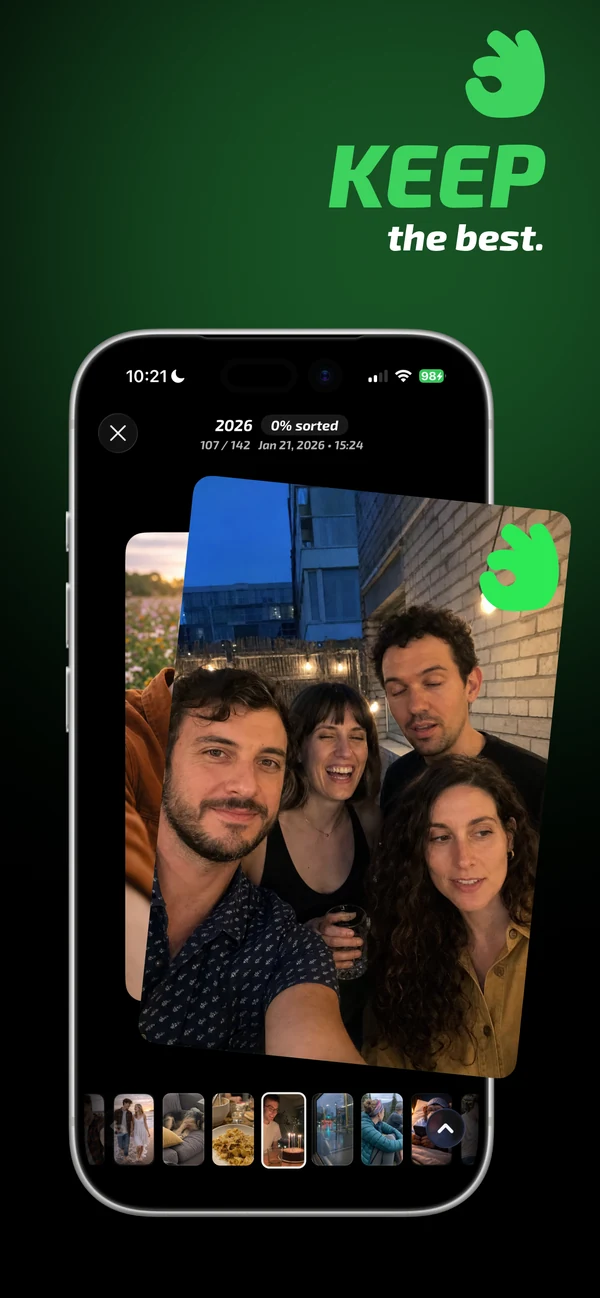
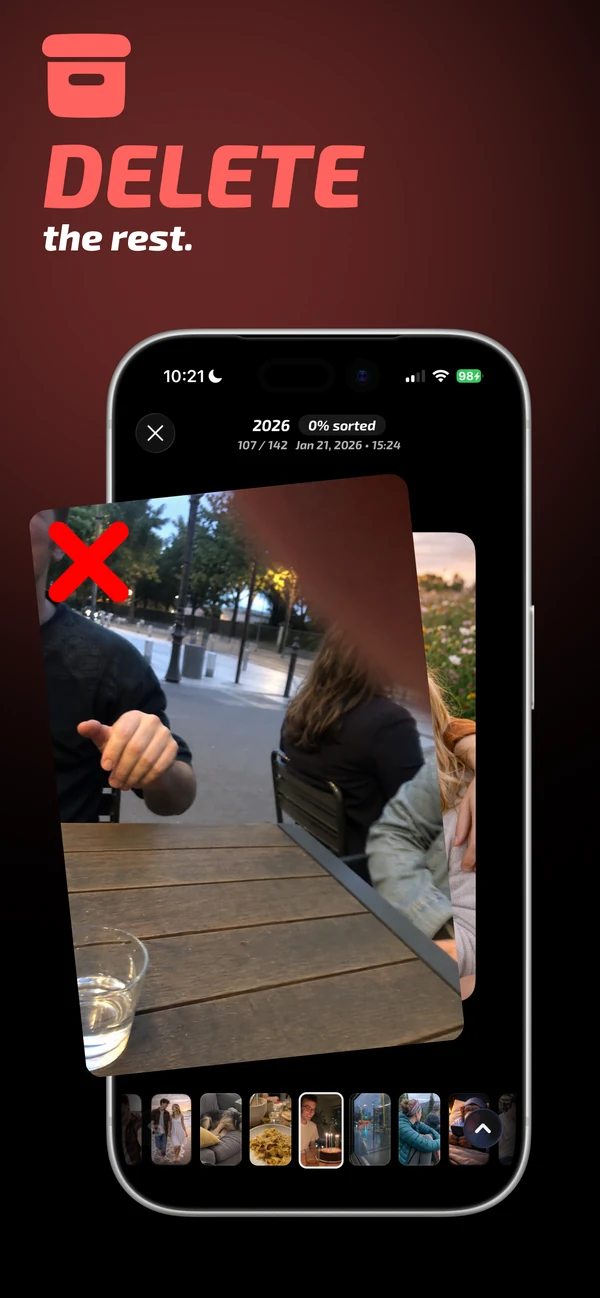
4. Review the marked screenshots before applying
Look at the delete batch in chronological order. Temporary screenshot sequences are easy to recognize together, and important outliers become more visible. Remove anything uncertain from the batch rather than hoping Recently Deleted will rescue it later.
5. Reclaim storage when the review is complete
Deleted screenshots normally stay in Recently Deleted for up to 30 days. If immediate storage is the goal, open that collection, unlock it and permanently delete the reviewed items. Screenshots are usually smaller than videos, so the organizational benefit may be larger than the storage gain.
Reduce future screenshot clutter
Delete a screenshot from the capture preview after sharing or using it when you know it has no future value. For information you need later, move the content to Notes, Files, Calendar or a task manager instead of relying on a growing Screenshots album.
Common questions
Can I select all screenshots on iPhone?
Photos lets you select multiple screenshots and drag across the grid, but the available controls can vary by iOS version and view. A complete select-all action is risky when useful screenshots are mixed into the collection.
Do screenshots use a lot of iPhone storage?
A single screenshot is usually modest, but thousands can add up. Long videos and high-resolution photos often have more storage impact, so check iPhone Storage before choosing a target.
Can I auto-delete screenshots after a month?
iPhone does not provide a universal automatic rule for every screenshot. A short recurring review is safer because some screenshots remain useful long after capture.