Choose a focused batch
Open a year, album, screenshots or a similar-photo group. A smaller target removes the pressure to clean everything at once.
 Photo cleaner for iPhone
Keep the memories. Archive the maybes. Mark the clutter for deletion. Mochi turns an overwhelming camera roll into quick decisions you can review before anything changes.
 Free to download
Mochi for iPhone
Start with one year, one album or one pile of screenshots. Every swipe moves the clean-up forward.
The real app
These are current Mochi App Store screenshots: swipe decisions, similar-photo comparison, map memories and year-by-year clean-up.
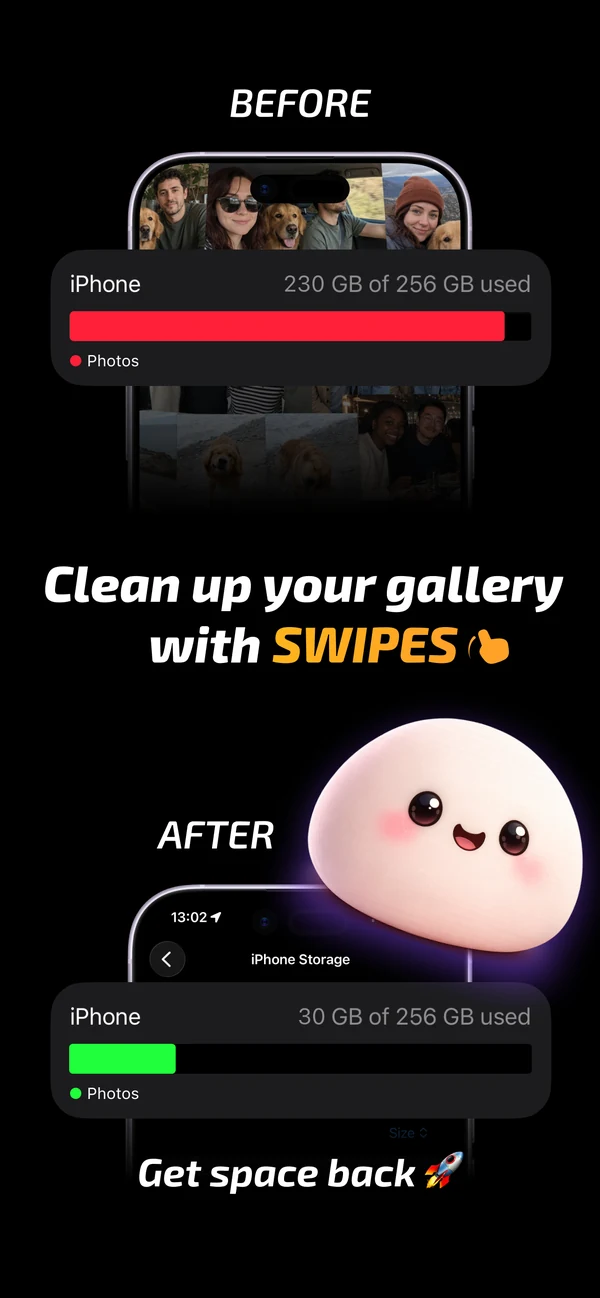
Turn a full gallery into visible space.
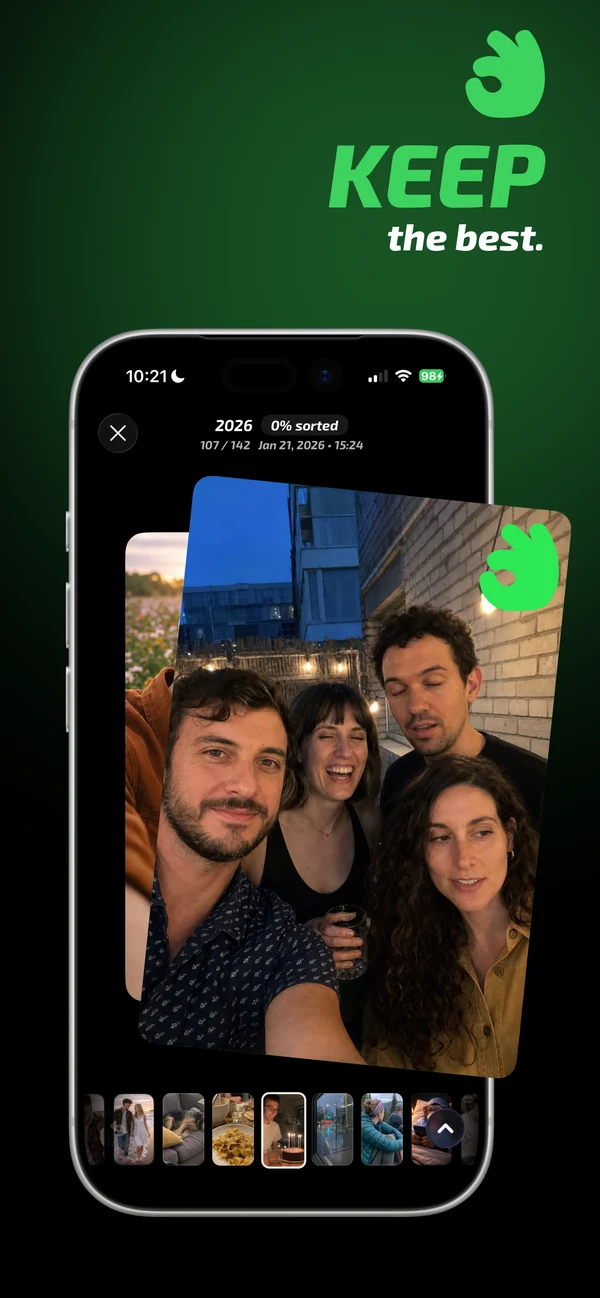
Keep the photos that matter.
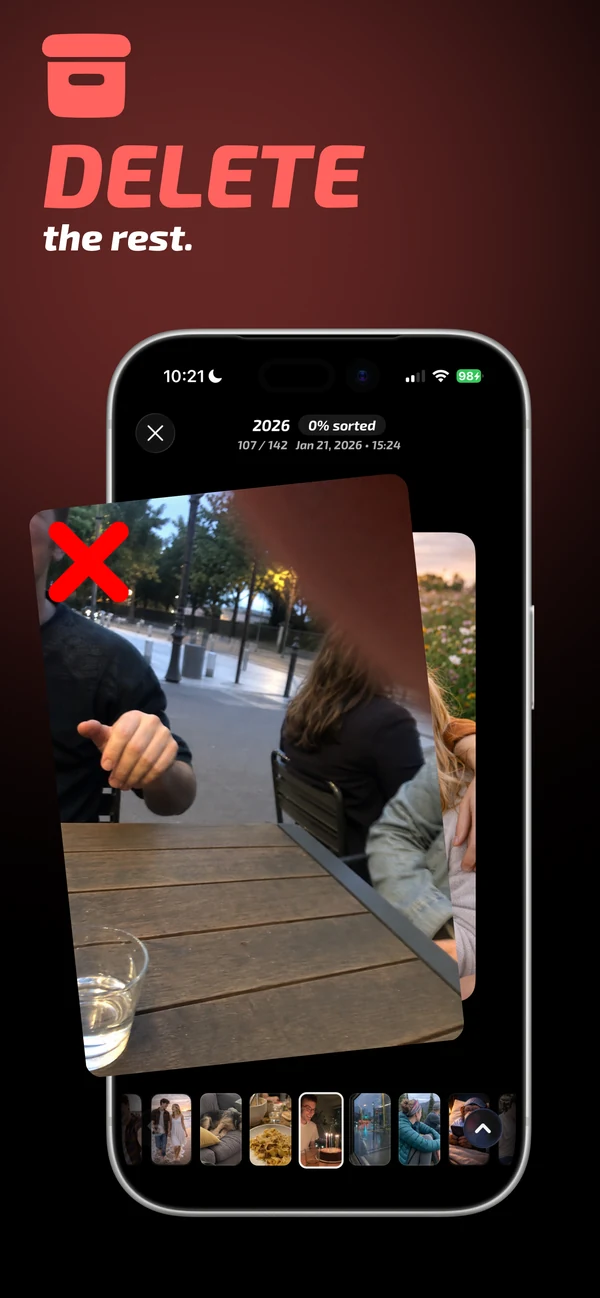
Mark clutter for deletion.
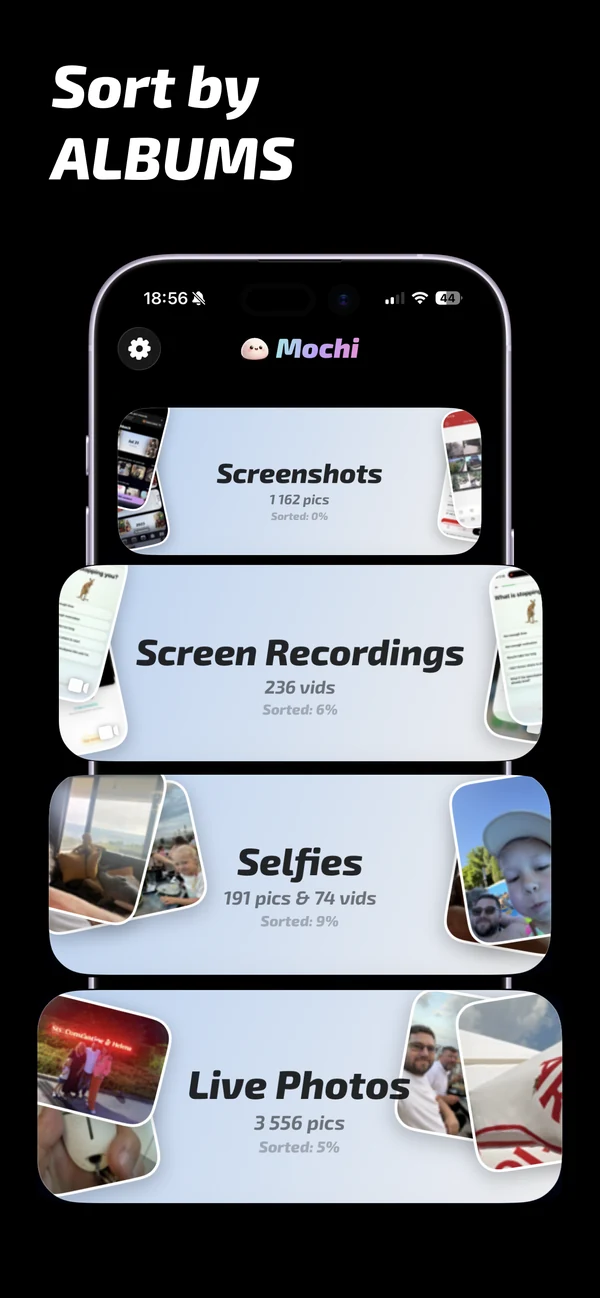
Tidy one album at a time.
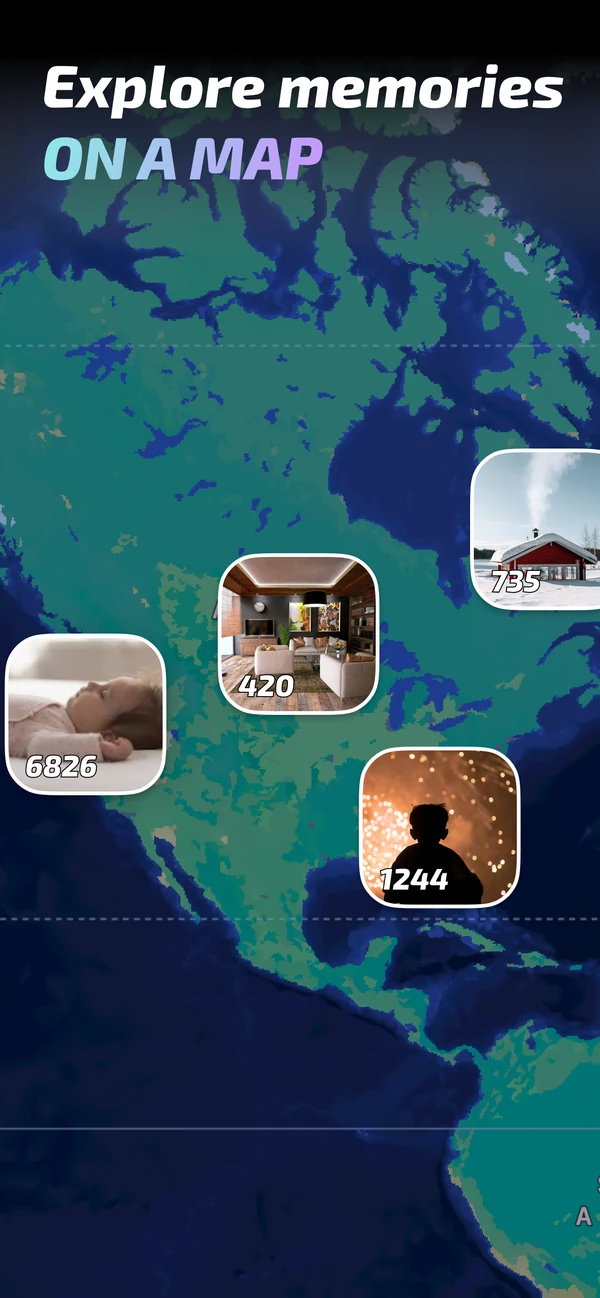
Explore memories on a map.
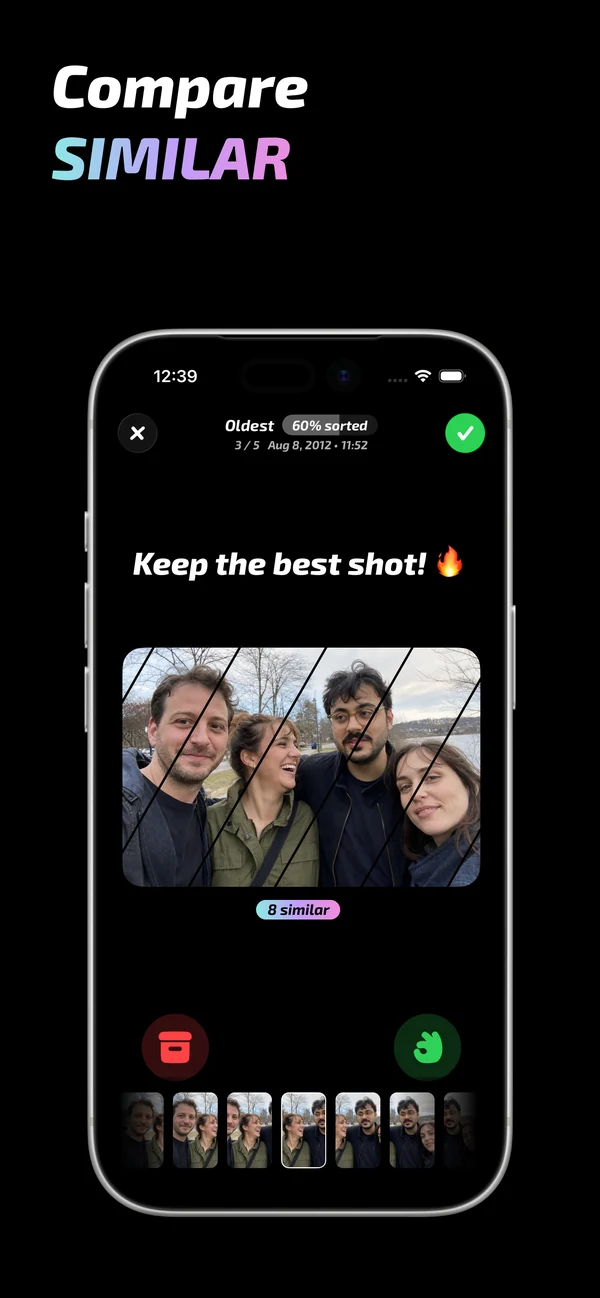
Compare similar shots together.
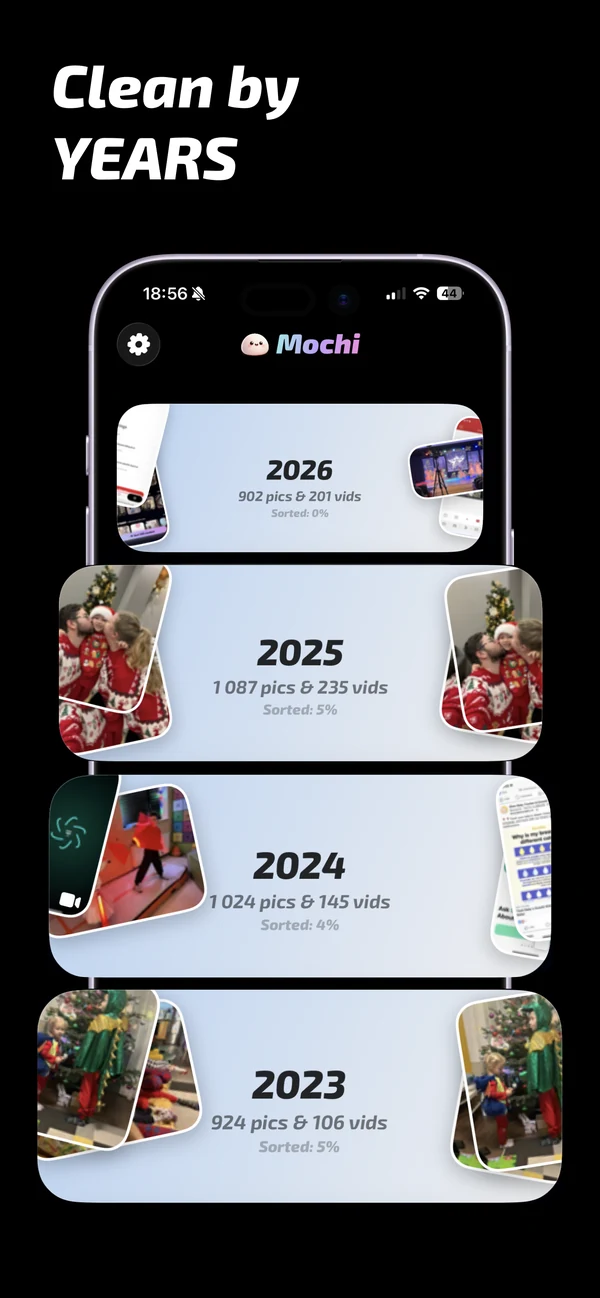
Make progress one year at a time.
How it works
Mochi combines quick decisions with a deliberate checkpoint before changes are applied to your Photos library.
Open a year, album, screenshots or a similar-photo group. A smaller target removes the pressure to clean everything at once.
Keep what matters, archive uncertain photos and mark obvious clutter for deletion without repeatedly opening menus.
Check the complete batch before committing. You stay in control of what is removed from your library.
Built for real libraries
Most camera-roll clutter is made of near-identical shots, forgotten screenshots and years you never had time to revisit.
Practical photo clean-up guides
Each guide answers a specific iPhone photo question first, then shows where Mochi can make the workflow faster or safer.
A practical order for screenshots, duplicates, old years and Recently Deleted.
Read the guideSwipe clean-upMake fast one-photo decisions while keeping a final review checkpoint.
Read the guideDuplicatesMerge exact copies in Apple Photos, then deal with near-identical shots.
Read the guideBest shotCompare bursts and repeated shots without handing the decision to automatic deletion.
Read the guideBy yearTurn a multi-year backlog into clean-up sessions small enough to complete.
Read the guideScreenshotsRemove temporary screenshots without losing receipts, tickets or reference images.
Read the guideStorageUnderstand iCloud Photos, Recently Deleted and when storage is really reclaimed.
Read the guideCamera rollEvaluate privacy, review controls and whether the workflow fits your real library.
Read the guideFAQ
Short answers to common photo clean-up questions, with a complete workflow behind every link.
Start with one small category, make one decision per photo and review the batch before applying it. Screenshots and a single old year are good first targets.
Learn more about cleaning up iPhone photosYes. Mochi lets you swipe to keep, archive or mark photos for deletion, then review the choices before they are applied.
Learn more about swipe photo clean-upUse Apple's Duplicates collection for exact copies. For near-identical shots, compare the group and choose the best frame manually.
Learn more about duplicate photo clean-upMochi groups similar shots so you can inspect the alternatives, keep the strongest image and mark the rest for deletion.
Learn more about finding similar photosPick one year, clear obvious clutter first, then review memories and repeated shots. Mochi gives you year-based starting points.
Learn more about organising photos by yearOpen the Screenshots collection and work in batches. Swipe review is safer when some screenshots contain tickets, receipts or information you still need.
Learn more about screenshot clean-upYes, but normal deletions stay in Recently Deleted for up to 30 days. Space may not be fully reclaimed until you remove them permanently.
Learn more about photo storage clean-upUse focused batches, keep uncertain choices out of the delete pile and insist on a final review step. Avoid tools that hide what they are about to remove.
Learn more about camera roll cleanersNo. Sorting happens on your device; your photos are not uploaded to Mochi servers for clean-up.
Learn more in the Privacy PolicyYour first clean-up can be one year
Download Mochi, choose one focused batch and turn photo clean-up into decisions you can finish today.